Are you a passionate virtual gardener hooked on the popular game “Grow a Garden”? If so, you’ve likely discovered the joy of planting, nurturing, and harvesting a variety of fruits and vegetables.
But what happens when your tastes change, or you accidentally favorite a fruit that doesn’t quite fit your garden’s theme? If you’re wondering how to unfavorite a fruit and streamline your garden experience, you’re in the right place. In this guide, we’ll show you the simple steps to unfavorite fruits in “Grow a Garden,” allowing you to manage your virtual plants more effectively and keep your garden exactly how you like it.
Stay with us, and let’s get your garden back on track!
Accessing Your Garden Profile
Access your garden profile to manage your favorite fruits. Tap on the fruit you wish to unfavorite, and confirm your selection.
Accessing your Garden Profile is essential for managing your preferences in Grow a Garden. This feature allows you to personalize your gardening experience. You can unfavorite fruit and make changes easily. The steps below guide you on how to access and navigate your profile efficiently.Locate The Garden Profile Tab
To start, find the Garden Profile tab on your main screen. It’s usually located in the top corner. Click on it to open your profile section.Sign In To Your Account
Ensure you are signed in to your account. This step is crucial for accessing personalized settings. Use your registered email and password for login.Navigate To Favorites
Once logged in, look for the Favorites section. This area lists all your chosen fruits. It helps you manage what you prefer.Select Fruit To Unfavorite
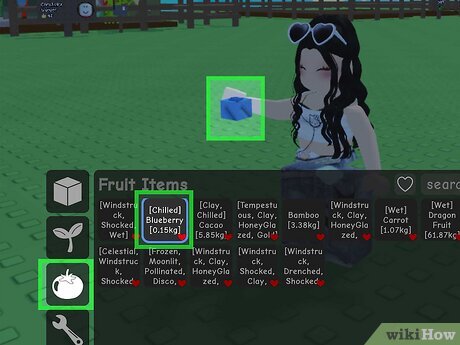
In the Favorites section, select the fruit you want to unfavorite. Click on the fruit to highlight it. This action prepares it for modification.Unfavorite The Fruit
After selecting, find the unfavorite option. Click to remove the fruit from your favorites list. This change updates your profile instantly.Save Your Changes
Finally, save the changes you made. This step ensures your preferences are updated. Your profile now reflects the new settings.
Credit: www.wikihow.com
Navigating To The Favorites Section
Find the favorites section easily by tapping the star icon. To unfavorite a fruit, simply tap the fruit, then select “Unfavorite” from the options. This simple action helps manage your garden preferences efficiently.
Navigating to the Favorites Section is a crucial skill for any enthusiastic gardener playing Grow a Garden. Whether you’re new to the game or a seasoned player, managing your favorite fruits can enhance your gardening experience significantly. Understanding how to unfavorite fruits can help keep your preferences organized and tailored to your current gardening goals.Accessing Your Garden Dashboard
Start by opening the game and heading to your main dashboard. This is where all your gardening activities are displayed. Look for an icon or tab labeled “Favorites”—it’s your gateway to managing your preferred fruits.Locating The Favorites Tab
Once you’re in the dashboard, the Favorites tab is usually easy to spot. It’s often marked by a star or heart icon. Click on it to view a list of all the fruits you’ve favorited.Selecting Fruits To Unfavorite
In the Favorites tab, browse through your list of fruits. Decide which ones you no longer want marked as favorites. Click on each fruit to open its options. With the fruit options open, look for the “Unfavorite” button. Clicking this will remove the fruit from your favorites list. Keep an eye out for a confirmation message to ensure the action is completed.Refreshing Your Favorites List
After unfavoriting, refresh your list to see the updated selection. This helps confirm that your changes have been saved. You might be surprised at how a more curated list of favorites can streamline your gardening strategy.Reflecting On Your Preferences
Take a moment to think about why you chose to unfavorite those fruits. Are you focusing on a different gardening strategy? Reflecting on your choices can provide insights into your evolving gardening journey. Navigating to the Favorites Section and managing your list can greatly enhance your gameplay. How often do you reassess your favorites, and does it reflect your current gardening goals?Identifying Favorited Fruits
To unfavorite a fruit in Grow a Garden, access your list of favorite fruits. Tap the fruit you wish to remove. Confirm your choice to update your list.
In the quest to cultivate a flourishing garden, understanding which fruits you’ve favorited is key. Favorited fruits often receive special attention in your garden. They are marked for easy identification and management. Identifying these can streamline your gardening efforts, ensuring you nurture the plants that truly matter.Recognizing Favorited Fruits In Your Garden
Favorited fruits usually stand out in your garden layout. They may be highlighted with different colors or symbols. Check your garden interface for these indicators. They help you spot favorited fruits at a glance.Tracking Favorited Fruits Using Garden Tools
Most gardening apps offer tools to track your favorited fruits. Use these tools to manage your garden effectively. You can set reminders for watering and harvesting. This ensures your favorited fruits receive proper care.Utilizing Labels For Favorited Fruits
Labeling is a practical method to keep track of favorited fruits. Use tags or markers in your garden. This makes it easy to identify them during your daily gardening routine. Labels help maintain organization and ensure quick access.Observing Growth Patterns Of Favorited Fruits
Favorited fruits may show distinct growth patterns. Regularly monitor these patterns for signs of health and maturity. Observing growth helps you understand the needs of your favorited plants. Adjust care routines based on these observations.Using Garden Layouts To Identify Favorited Fruits
Garden layouts often incorporate sections for favorited fruits. Designate specific areas for these plants. This spatial arrangement aids in managing your garden efficiently. It ensures favorited fruits receive optimal sunlight and nutrients.Removing Fruits From Favorites
To unfavorite fruit in Grow a Garden, open your favorites list and click the heart icon next to the fruit. This action removes the fruit from your favorites, allowing you to manage your garden preferences effortlessly. Enjoy customizing your virtual garden experience with ease.
Removing fruits from your favorites in the “Grow a Garden” app can seem like a daunting task, especially if you’ve been adding them for a while. Perhaps your taste has changed, or maybe your garden has evolved, and you no longer wish to keep certain fruits at the top of your list. Whatever the reason, knowing how to unfavorite fruits can streamline your gardening process and make room for new favorites that better suit your current needs.Accessing Your Favorites List
Start by navigating to the favorites section in your app. This is where all the fruits you’ve marked as favorites are stored. It’s like a mini showcase of what you love most in your garden. By accessing this list, you have a clear view of what needs to stay and what needs to go.Selecting The Fruit To Unfavorite
Once you’re in your favorites list, scroll through to find the fruit you wish to remove. It’s essential to take your time here—maybe even reminisce about why you chose it in the first place. This can help reaffirm your decision or change your mind if you find a renewed appreciation for the fruit.Using The Unfavorite Option
When you’ve decided which fruit to unfavorite, look for the unfavorite option. This is usually represented by a star icon or a similar marker. Clicking this option will remove the fruit from your favorites, freeing up space for new selections. Remember, this process doesn’t delete the fruit from your garden; it simply alters its status on your list.Confirming The Changes
After you’ve unfavorited a fruit, it’s crucial to confirm the changes. Check your favorites list again to ensure the fruit has been removed. This step is not just about accuracy; it’s about peace of mind. Knowing that your list accurately reflects your current preferences can bring a sense of satisfaction and organization to your gardening experience.Reflecting On Your Choices
Take a moment to reflect on the fruits you’ve chosen to unfavorite. Has your taste in gardening evolved? Are you looking for more variety? This reflection can guide your future choices, helping you create a garden that truly represents your evolving tastes and needs. It’s all about keeping your gardening experience fresh and exciting.Saving Your Changes
Unfavoriting fruit in Grow a Garden is simple. Navigate to your favorites list and select the fruit you wish to remove. Tap the unfavorite button to save your changes instantly.
Saving your changes is crucial when you’re managing your virtual garden in the Grow a Garden app. Imagine spending valuable time organizing your favorite fruits, only to find out later that your preferences didn’t save. To avoid such frustration, it’s essential to know how to properly save your changes and enjoy a seamless gardening experience.Understanding The Save Button
The save button is your best friend in the Grow a Garden app. Always look for it at the bottom of your screen after making changes. A quick tap ensures that your adjustments are recorded.Checking For Confirmation Messages
After saving, the app often displays a confirmation message. This notification is your assurance that your changes are secure. If you don’t see it, double-check your internet connection and try saving again.Regularly Refreshing Your App
Refreshing your app can prevent data loss. Simply close and reopen the app to ensure your updates are intact. This quick step can save you from potential technical glitches.Keeping Your App Updated
An updated app functions more smoothly. Check for updates regularly in your app store. Updates often fix bugs that might prevent your changes from saving correctly.Testing Your Changes
Once you’ve saved your changes, navigate through your garden to confirm everything is as you want it. This proactive step can help you catch any missed details early. After all, a well-organized garden is a joy to manage. Engaging with your gardening app becomes more rewarding when you know your preferences are safe. What strategies do you use to ensure your digital gardens are just as you like them?
Credit: www.youtube.com
Verifying Updated Favorites
Verifying updated favorites in the Grow a Garden app ensures your garden reflects your current preferences. This process is crucial after making changes to your favorite fruits list. It helps maintain the garden’s organization and supports optimal growth strategies.Once you’ve unfavorited a fruit, double-check its status. This confirms your choices are saved. Below are steps to verify your updated favorites in the app.
Access Your Garden Dashboard
Log into the Grow a Garden app. Navigate to your main dashboard. This area displays all your garden activities. It’s where you manage your plant preferences.
Review Your Favorites List
Locate the favorites section. This is typically under the settings or profile tab. Check the list to ensure the unfavorited fruit is no longer present.
Refresh The App
Close the app and reopen it. This refreshes the data. It ensures all recent changes, including unfavoriting, are updated.
Check Notifications
Look for notifications about your favorites list update. The app often sends alerts confirming changes. Ensure you have received these notifications.
Consult The Help Section
If issues persist, visit the help section. It provides troubleshooting tips. You may also contact support for assistance.
Tips For Managing Favorites
Easily manage your favorites in Grow a Garden by accessing the fruit list. Choose the fruit you want to unfavorite and click the star icon next to it. This will remove it from your favorites, helping keep your list organized.
Managing favorites in Grow a Garden can enhance your gardening experience. Choosing which fruits to favorite or unfavorite allows you to focus on what you truly enjoy growing. Here are some helpful tips for managing favorites effectively.Organize Your Favorite Fruits
Arrange your fruits based on preference. This helps you quickly access your favorite selections. Grouping similar fruits together can make your decision-making process easier.Review Your List Regularly
Check your list often. Removing fruits you no longer enjoy keeps your favorites relevant. A fresh list keeps you motivated and excited about gardening.Prioritize Seasonal Fruits
Focus on fruits suitable for the current season. This ensures you get the best results from your garden. Seasonal favorites can provide a rewarding experience.Consider Space Availability
Think about how much space you have. Some fruits require more room to grow. Adjust your favorites to fit your garden’s capacity.Experiment With New Varieties
Try new fruit types. They might become your new favorites. Experimenting adds variety and interest to your gardening routine.Use A Checklist
Create a checklist for your favorite fruits. This helps track what you have and what you need. A checklist can simplify your gardening tasks.
Credit: gameboost.com
Frequently Asked Questions
How To Remove A Favorite Fruit In Grow A Garden?
Open the Grow a Garden app. Tap on the “Favorites” section. Select the fruit you want to remove. Click the “Remove” button next to it. Confirm the removal to update your favorites list. Make sure the app is updated for smooth functionality.
How To Unfavorite A Fruit In Grow A Garden Console?
To unfavorite a fruit in Grow a Garden Console, open the fruit menu. Select the desired fruit, then click “Unfavorite. ” This action will remove the fruit from your favorites list. Ensure you save changes to confirm the update. Follow these steps to manage your fruit preferences easily.
How To Undo Favorite Tools In Grow A Garden?
To undo favorite tools in Grow a Garden, navigate to the tools menu. Select the favorite tool you wish to remove. Click on the ‘Remove from Favorites’ option. Your selected tool will no longer be listed as a favorite. This process is quick and easy for all users.
Can You Harvest Favorited Fruits In Grow A Garden?
Yes, you can harvest favorited fruits in Grow a Garden. Plant and nurture them to enjoy a bountiful harvest. Ensure optimal growth by providing the right conditions and care. Regularly check the garden for ripe fruits and pick them at the perfect time for the best yield.
Conclusion
Changing your fruit preferences in “Grow a Garden” is simple. Follow the steps we discussed to unfavorite any fruit you want. This helps manage your garden efficiently and focus on what you enjoy growing. Adjust your garden choices whenever needed.
Experiment with different fruits to keep the game fun and engaging. Remember, gardening is about growing what you love. Keep trying new things and discover fruits that suit your taste. Enjoy the gardening journey and watch your virtual garden flourish with your preferred fruits.
Happy gardening!